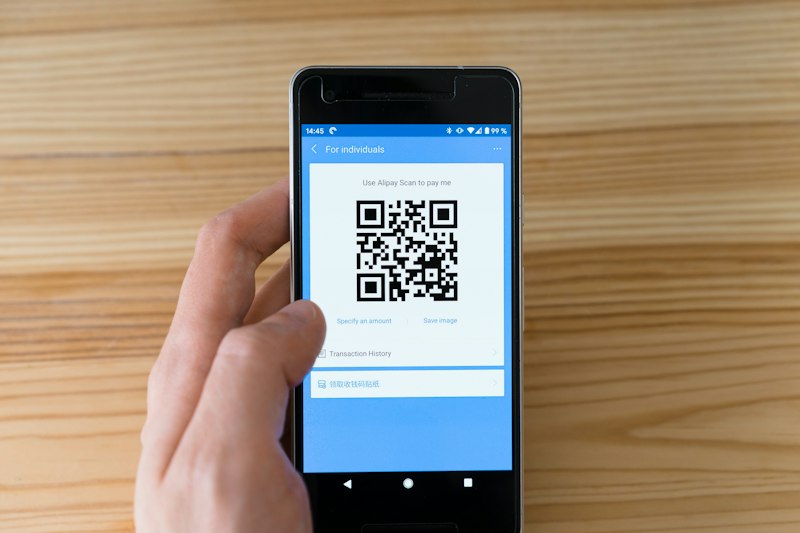
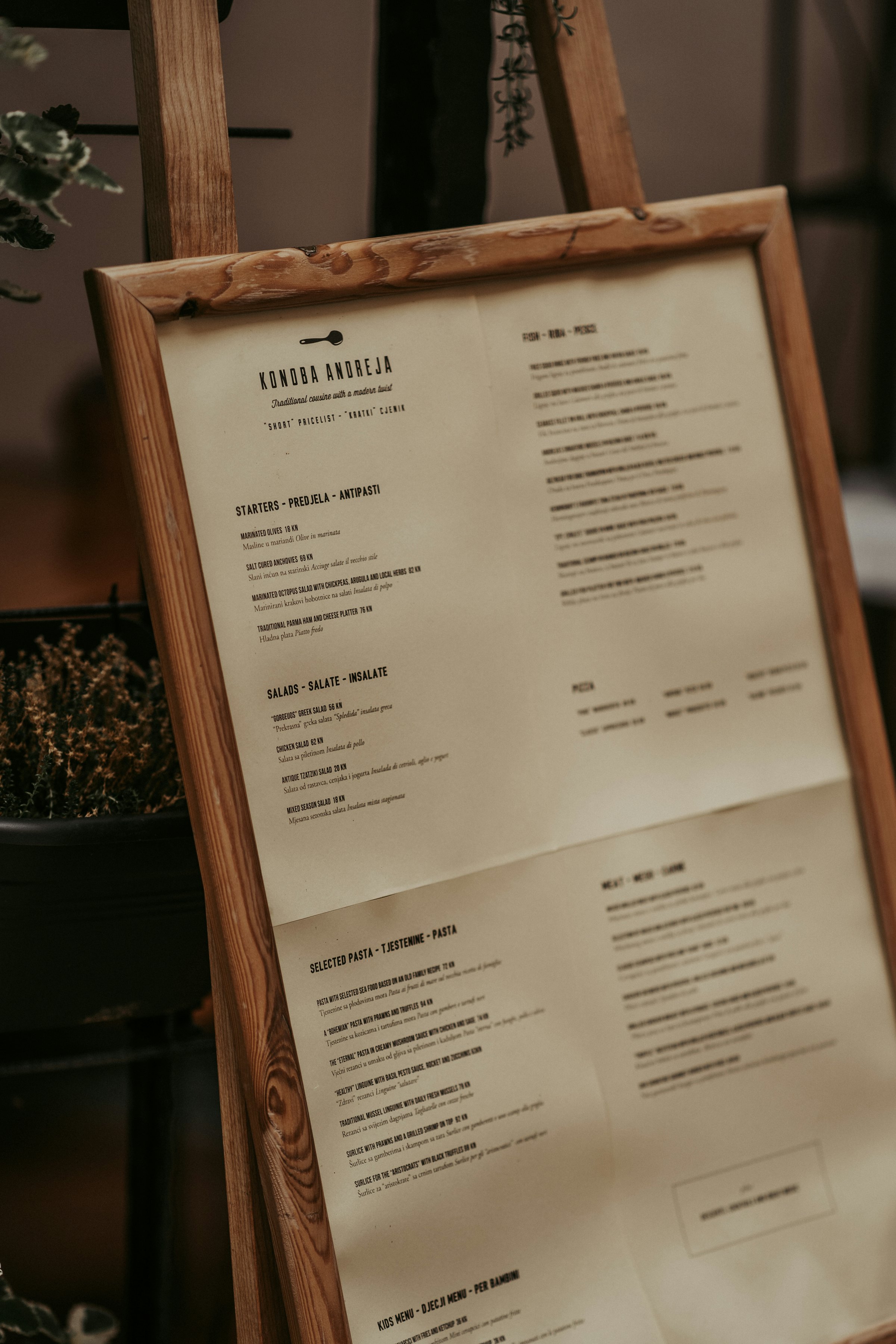
Plenty of places already have a digital menu, at least on paper: a PDF behind a QR code. On a phone, guests pinch and drag it around. A good digital menu is built for the phone, can be searched and is right today. You need no technical skills for it. Most of the time goes into checking, not technology.
Is a PDF good enough as a digital menu?
A PDF is fine as a stopgap and the weakest option long term. Nielsen Norman Group, which has watched people use PDFs and web pages for about 20 years, advises against PDFs for reading on screens: they are sized for paper, you see a small part of the page and you lose your place. That research covered websites and intranets, not menus, but a small screen causes the same trouble.
Here is a simple test. The web accessibility guideline WCAG expects content to work at a width of 320 pixels without scrolling in two directions. Open your menu on a phone. If you have to zoom and drag sideways to read a price, it fails.
One common myth: Google can’t read PDFs. Google lists PDF as a file type it can index. The real drawbacks are reading it on a phone and making a new file for every price change.
What are your options for a digital menu?
There are four common options, and you can combine them. Many places run one as the main menu and also keep the menu in their Google profile current.
| Option | On a phone | Changing a price | Fits |
|---|---|---|---|
| PDF behind a link or QR code | Small, needs zooming | Upload a new file, check the link | A few weeks while you move over |
| A page on your own website | Good if the layout is built for phones | Through your website system, often with help | Places with a well-kept website and few changes |
| Menu editor in your Google Business Profile | Readable inside Google | You do it in the profile | An addition, so the menu on Google is right |
| A dedicated menu tool | Built for phones, often with search and languages | In an app or browser, live right away | Places that change often and want allergens on the dish |
Google’s menu editor is open to food and drink businesses: sections, items, descriptions and prices. Google itself calls creating a menu from a photo or PDF experimental. This is as of November 2026.
Whichever option you choose, four things matter most day to day: guests don’t need an app, you can change a price yourself from your phone, allergens sit on the dish and are confirmed by your kitchen, and the address behind the QR code never changes.
How do you build the menu step by step?
- Gather the current menu. Printed pages, drinks, the chalkboard, lunch and seasonal specials. Cross out anything you no longer serve.
- Decide on categories. Few and clear, in the order guests order: breakfast, small plates, mains, sweets, drinks.
- Put every dish in the same format. The table below shows the fields you need.
- Type it in or have it read. AI saves a lot of typing but makes mistakes. Our article on creating a menu with AI covers what it reads well and what it doesn’t.
- Check allergens with the kitchen. Against recipes and supplier information, never from memory. The rules are in our guide to allergens on the menu.
- Check every price against the till. Menu and till have to say the same thing.
- Test it at the table. On an older phone, at the seat with the worst signal. Can someone who doesn’t know you find a coffee and its price in 30 seconds?
- Get it to your guests. Through a QR code, an NFC sticker, your Google profile and your social profiles.
Here is an example with made-up numbers. Café Morgenrot has 60 items. At two minutes per item for checking and adding details, that’s two hours, plus a session with the kitchen on allergens. Enter your first ten dishes and time yourself, and you’ll know how long yours will take.
What does every dish need?
Every dish needs a name, a price and its allergens, drinks need a size, and it helps to answer whatever a guest would ask before ordering. One table with these fields saves you double work later, whichever tool you end up using.
| Field | Example (made up) | What to watch |
|---|---|---|
| Category | Breakfast | Few categories, consistent names |
| Name | Avocado toast | The way guests order it |
| Description | Sourdough, avocado, chilli, lemon | What’s in it, in one line |
| Price | €11.50 | Final price, always written the same way |
| Size | Drinks: 0.3 l | Always for drinks |
| Allergens | Cereals containing gluten (wheat) | Confirmed by the kitchen |
| Labels | Vegan | Only when it’s really true |
| Photo | If you have one | Has to look like the real plate |
What are the legal rules for a digital menu in Germany?
In Germany, the same price and allergen rules apply to a digital menu as to a printed one. These are the main points as of November 2026. Elsewhere in the EU, the allergen duty is the same but the details are national.
- Final prices. Under section 13 of the German Price Indication Ordinance, prices must include service charges and all other surcharges.
- No approximate prices. The Dortmund Chamber of Commerce (IHK) lists “from”, “about” and price ranges as not allowed, and says drinks need their quantity.
- Price list. Section 13 also asks for a price list by the entrance and one for guests inside. Whether a QR code can replace the menu on the table is covered in our QR code menu article.
- Allergens online. Under section 4 of the German food information ordinance (LMIDV), the information may sit in an electronic service. It must be directly and easily accessible, readable before purchase, and a notice on site must say how to find it.
The rest is in what must be on a menu in Germany. If a point depends on your case, ask your IHK or local food authority (Lebensmittelüberwachung).
How do guests get to your digital menu?
Guests get there through one address that stays the same everywhere. A change then only has to happen in one place.
- At the table: a QR code or an NFC sticker. Anyone with a camera can scan the code, and the sticker opens the menu with a tap.
- On Google: in your Business Profile, under Edit profile, Business information, Contact, Menu link.
- On your profiles: Instagram, your website, WhatsApp replies.
What usually goes wrong?
Most problems start after launch, when nobody looks after the menu any more. Watch for these from day one:
- Two versions of the truth. Paper, Google and your website show different prices. Decide which one is the source and change the others the same day.
- Dead links. The QR code points at a file that got renamed. Use a fixed address, not a file link.
- New recipe, old allergens. A new sauce or supplier can change the allergens. Make that a fixed step with every recipe change.
- Photos that don’t match. A lovely picture that looks nothing like the plate lets guests down. No photo is better.
- Too many categories. On a phone, every extra category means more scrolling. Keep to a few and cut what hardly anyone opens.
How do you keep the menu current?
A digital menu stays current when one person owns it and has a fixed slot for it. Ten minutes a week is often enough: prices, specials, what has run out. Your regulars will spot a wrong price first.
The best menu is the one that’s right today.
A searchable menu can also show you what’s missing, if your tool shows searches that found nothing. If people keep searching for “gluten-free”, you know which note is missing. If many guests travel to you, translating the menu is a good next job.
What does it look like when you do it all from your phone?
In the NFCeez app you take photos of your menu or upload a PDF, up to 20 pages. After three questions about descriptions, recommendations and photos, the AI sorts dishes, prices, sizes and categories. You go through it all, confirm the allergens that came from the AI when you publish, and only then do guests see the menu. It appears on your Smart Page with Popular, categories and search, and guests read it in any of 25 languages.
After that, keeping it current is quick: change a price in the app, publish, and the next guest sees it. When a dish runs out, you mark it without publishing again. The app shows you which guest searches found nothing.
The limit: guests can’t order or pay through the menu, that still goes through your staff and the till. You still need the price list by the entrance, and NFCeez doesn’t take the checking time from the example above off your hands either. The digital menu page shows each step.
Where do you start today?
Your next step: set up the table above today and enter your first ten dishes. Then show it to someone from the kitchen and ask what’s wrong.
How NFCeez does thisYour menu, from photo to search.Take photos of your menu, check what the AI read and publish. After that you change prices in the app and mark whatever has run out.See how it works- Preisangabenverordnung, § 13 Gaststätten
- LMIDV, § 4 (Allergeninformation bei nicht vorverpackten Lebensmitteln)
- IHK Dortmund: Preisangaben im Gaststättengewerbe
- Nielsen Norman Group: Avoid PDF for On-Screen Reading (2020)
- W3C: Understanding WCAG 2.2 Success Criterion 1.4.10 Reflow
- Google Search Central: File types indexable by Google
- Google Business Profile Help: About the menu editor